First-Frame & Last-Frame Control in MAGI 2 Image to Video
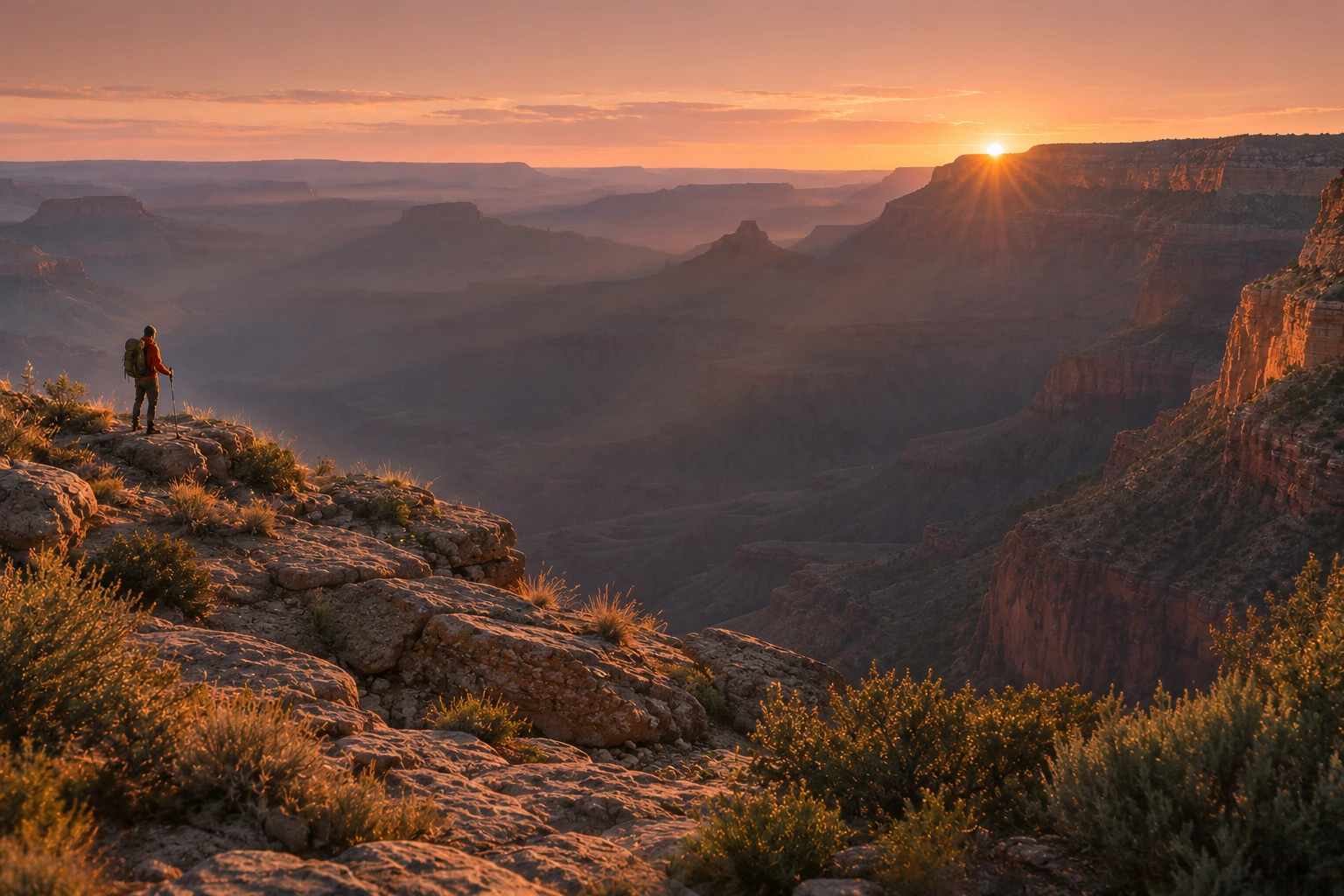
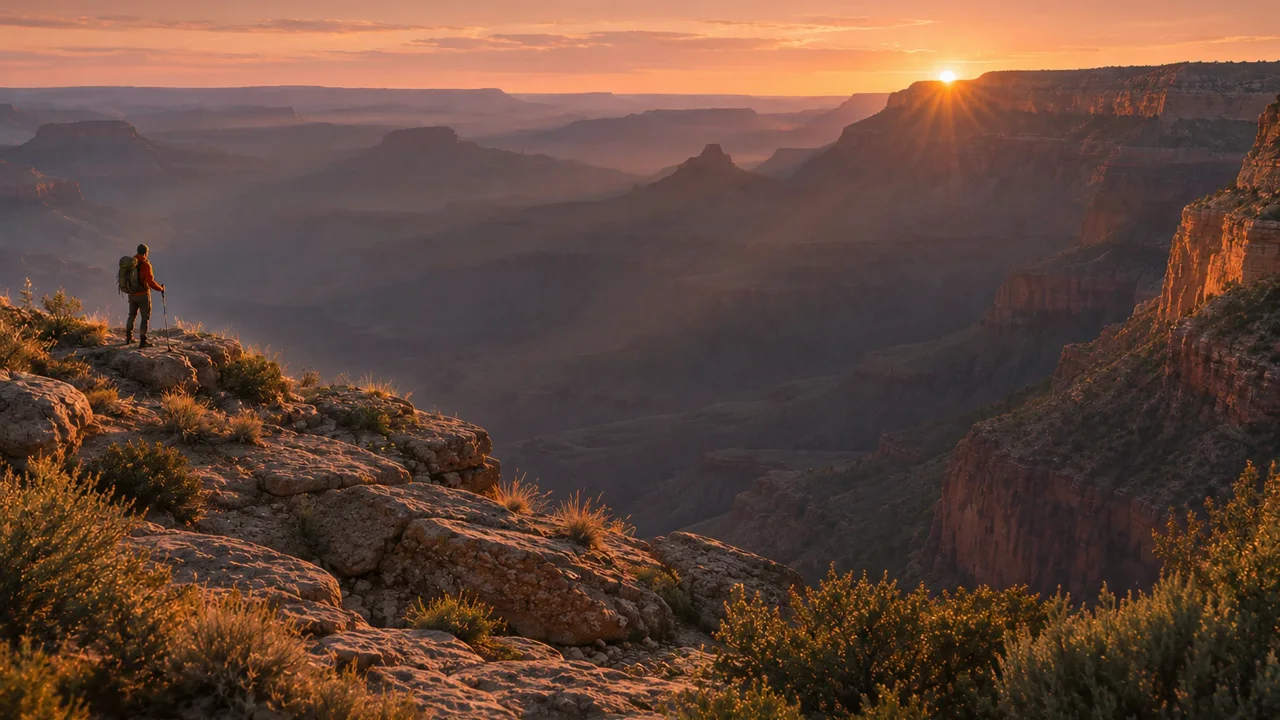
MAGI 2 Image to Video turns any photograph, illustration, or product render into a 1080p, 25 fps clip with native synchronized sound. Rather than forcing a fixed crop, MAGI 2 inspects your uploaded First Frame and locks output framing to its exact proportions—widescreen (16:9 or 21:9), square (1:1), or vertical (9:16).
When to Add an Optional Last Frame
With only a First Frame, MAGI 2 extrapolates natural camera motion, lighting shifts, and sound across 4s to 30s. Adding an optional Last Frame anchors the closing state so the model bridges motion between both stills:
- Before-and-after reveals: Transition a room, architectural model, or product angle smoothly without harsh morphing.
- Choreographed camera moves: Pair an opening wide still with a tight close-up so the camera tracks cleanly to your subject.
- Loopable ambient visuals: Match opening and closing frames with subtle wind, rain, or room tone for seamless playback.
Preparing Keyframes for Crisp 1080p Motion
Start with clean JPG, PNG, or WebP stills up to 5 MB (larger phone photos auto-resize to 2048 px in your browser) and avoid cluttered text overlays unless you want them animated. Write your prompt around what changes after frame one: camera push-in, expression, fabric or foliage physics, quoted dialogue, and a closing Sound: cue.
Honest Limits & Upload Privacy
- Best for: Animating crisp stills with controlled camera moves, atmospheric micro-motion, or start-to-end keyframe bridges at native 1080p, 25 fps (4s–30s, 10 credits/sec, zero watermark).
- When to switch modes: Output caps at 1080p (no native 4K) and always inherits your First Frame's ratio. To change aspect ratio or keep one subject consistent across fresh camera angles, use MAGI 2 Reference to Video. Keep First and Last Frames visually coherent to prevent morphing artifacts, and test framing with a free 1K End Frame Preview first. Full limits: MAGI 2 Specs. Still deciding which model fits your project? See MAGI 2 vs Kling AI, Runway & Veo for a side-by-side comparison.
- 24-hour deletion: Uploaded keyframes pass safety screening, go solely to our inference provider, and delete within 24 hours. Start from text anytime in the MAGI 2 AI Video Generator.